
A coloured overlay for any web page: tint extension
Some readers find text steadier through a coloured sheet, the tinted plastic overlays handed out in many classrooms. Emboldened’s tint does the same for the web: a soft colour over any page, chosen from six shades, applied live. It’s free, and it works alongside dim, cream and dark mode for people who find white pages uncomfortable.
What a tint overlay is, and what it isn’t
A tint is a translucent layer of colour laid over the whole page. Everything underneath shows through, images included, but warmed or cooled by the colour you’ve chosen. It’s the screen equivalent of reading through a sheet of pale yellow acetate, and that’s not a coincidence: coloured overlays for reading have been in use since the 1980s, particularly for what’s usually called visual stress, the experience of text appearing to move, shimmer or blur on a bright page.
It pays to be straight about the evidence, because it’s contested. A systematic review by Griffiths, Taylor, Henderson and Barrett (Ophthalmic and Physiological Optics, 2016) went through the controlled studies of coloured overlays and lenses and concluded that the benefits reported were small, often no larger than placebo, and that overlays could not be endorsed as a treatment for reading difficulty. Many people who use them nonetheless report that pages are more comfortable, and comfort is a legitimate thing to want from a screen you look at all day. Our view is that a tint is worth trying if white pages bother you, costs nothing, and should be judged by whether you read more comfortably with it, not by claims that it will fix dyslexia. It won’t. We go through the research in visual stress, Irlen syndrome and screen tint.
How Emboldened’s tint works
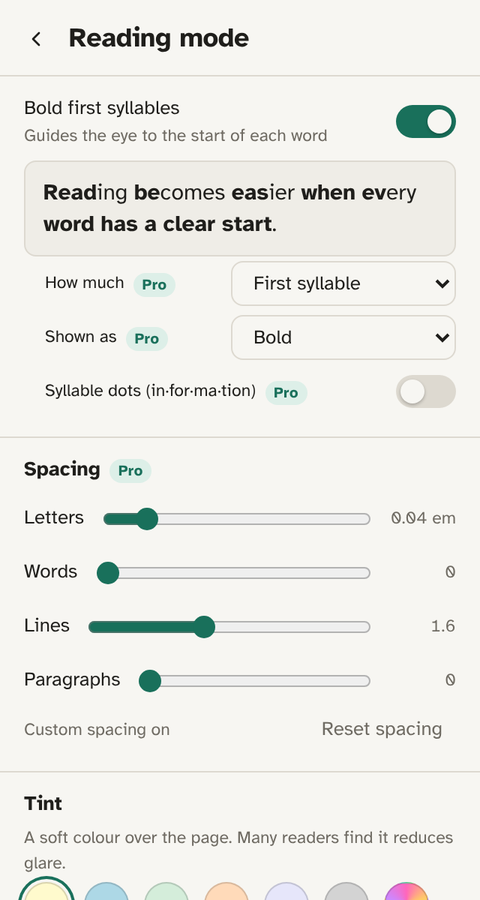
The Reading mode screen has a row of six swatches, lemon, sky blue, mint, peach, lavender and grey, and a custom colour picker beside them. Tap one and the colour lies over the page immediately; Remove tint clears it. The tint is a layer above the page, so it never changes the page’s own colours or text, and it never captures clicks, so links and buttons work as before. Switch it off and the page is exactly as it was.
Tint is one of four ways Emboldened reduces the glare of a white page, and they suit different people:
- Tint (free): a colour over the whole page, like an overlay sheet. Shifts every colour, images included.
- Soft white (Pro): replaces white backgrounds with cream and leaves every other colour and image alone. The quietest option.
- Dim screen (free): lowers the light from the page without changing colours.
- Dark mode (free): recolours the page dark, leaving images untouched.
They combine. A lemon tint with a little dimming is a common choice for daytime; dark mode for the evening.
How to set it
- Install Emboldened from the Chrome Web Store. It installs in Edge and Brave as well.
- Click the Emboldened icon, then Reading mode.
- Under Tint, tap a swatch. Try two or three on a page you actually read; the right one is the one where the text stops moving or glaring, and it varies from person to person.
- Use the custom colour picker if you’ve been prescribed a specific shade; Remove tint clears it.
If you’ve been assessed for an overlay colour by an optometrist or specialist teacher, the custom picker lets you match it exactly.
Limits worth knowing
A tint changes every colour on the page a little, which is the point, but it means photographs take on the cast of the tint and a strongly coloured site may look odd under a strongly coloured tint. If you want the glare gone without changing colours, soft white or dim are the better tools. The tint covers the web page only, not the browser toolbar or other apps. And, like every extension, it can’t run on Chrome’s own settings pages or in the Chrome Web Store.
Other overlay extensions
Screen Shader tints pages a warm orange with an adjustable colour and darkness, and changes the tint through the day from sunrise and sunset times; it’s open source and widely used, and it’s the right choice if you want a scheduled, f.lux-style effect. Helperbird includes overlays and tints among a very large accessibility toolkit.
Emboldened’s tint is deliberately simple, six swatches, a custom colour and no schedule, because it’s one part of a set: tint, soft white, dim and dark mode for light, bolding and spacing for the text, a ruler for your place, read-aloud for when you’d rather listen. All of it runs on your computer, and nothing you read leaves it. For a round-up of the options, see Chrome extensions for light sensitivity.
Questions
Is the tint free?
Yes. Tint, dim screen, dark mode and the reading ruler are all free, for good.
Which colour should I use?
Whichever one makes the page most comfortable for you; there’s no colour that works for everyone. If you’ve been assessed for an overlay, choose the closest swatch. Otherwise try lemon first, then sky blue, and judge by reading a real page.
Does a tint cure dyslexia or visual stress?
No. The research doesn’t support overlays as a treatment for reading difficulty. Many people find a tint more comfortable to read through, and that’s a good enough reason to use one.
Does it change images?
The tint lies over everything, so images take on a slight cast. If you want images untouched, use soft white (Pro) or dim screen instead.
Can I set my own colour?
Yes. Next to the six swatches there’s a custom colour picker, so you can match a prescribed overlay shade exactly.
Free to install. Every Pro feature is on for 14 days, no card. Nothing you read leaves your computer.