
A dark mode extension that doesn’t invert images
Most dark mode extensions get their result by inverting the page, which is why photos turn into negatives and logos come out in the wrong colours. Emboldened reads each page’s actual colours and recolours text and backgrounds only. Pictures, video and icons are left exactly as they are. It’s free, and it applies live to any page.
Why inverted dark modes look wrong
The quickest way to make a white page dark is to flip every colour: white becomes black, black becomes white, and everything in between swaps. It’s one line of code, which is why so many tools do it. The trouble is that the flip applies to everything, including the things that were never meant to be dark. A photograph of a face comes out as a negative. A blue link turns orange. A company logo turns into a colour the company has never used. Some tools try to patch this by inverting images a second time to put them back, which mostly works but leaves halos and strange edges, and still gets graphs and diagrams wrong.
For a reader who uses dark mode because bright screens hurt, this is a real cost, not a cosmetic one. If every page is full of inverted pictures you stop trusting what you’re looking at, and you end up switching dark mode on and off page by page, which is the opposite of restful.
What Emboldened does instead
Emboldened doesn’t invert anything. When you switch dark mode on, it looks at the colours the page is actually using, the background of each element, the colour of its text, its borders, and works out a dark equivalent for each one: a light background becomes a dark one, dark text becomes light text, and the contrast between them is kept. Colours that were already dark are left alone, so a site that has its own dark theme isn’t made darker still.
Images, photographs, video, canvas drawings and icons are never touched. A photo stays a photo. A chart keeps its colours. A logo looks like the logo. The page reads as if the site had shipped a dark theme itself, because that is more or less what has been computed.
Because the recolouring is worked out from the page rather than applied as a blanket filter, it holds up on the awkward cases: pages that load more content as you scroll, web apps that redraw themselves, sites with coloured panels and sidebars. And because it’s live, switching it off puts the page back exactly as it was, with no reload.
Who it’s for
Dark mode is not a universal good. For most readers in a normally lit room, dark text on a light background is slightly faster to read: a well-known study of younger and older adults (Piepenbrock, Mayr, Mojzisch and Buchner, Ergonomics, 2013) found that positive polarity, dark on light, gave better proofreading performance for both age groups. If you don’t have a problem with bright screens, you may not want this on all day.
But for people with light sensitivity, migraine, visual stress or simply tired eyes at the end of the day, the glare from a white page is the problem, and a dark page removes it. That is who this is built for. It sits alongside two gentler options for the same readers: dim screen, which turns the whole page down without changing its colours, and soft white, a Pro setting that swaps pure white for cream. Many people find the right answer is dim or cream in the day and dark in the evening. There’s more on choosing between them in photophobia and screens.
How to turn it on
- Install Emboldened from the Chrome Web Store (it also installs in Edge and Brave).
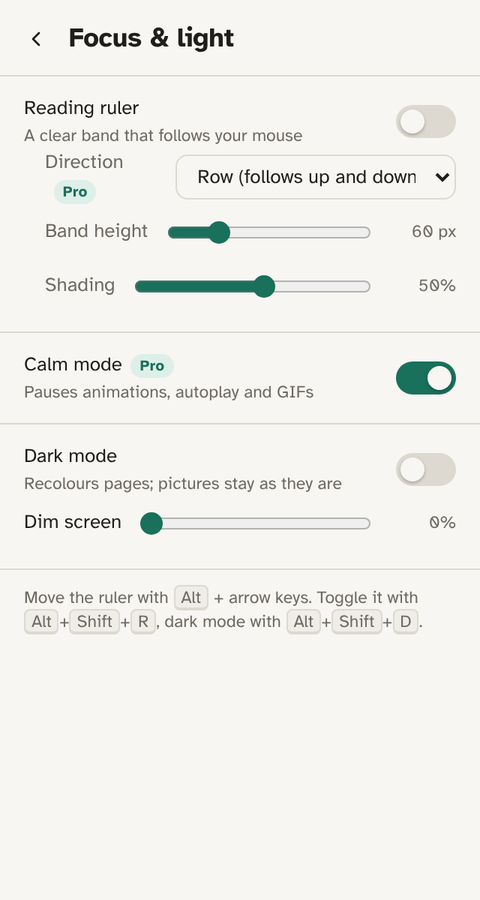
- Click the Emboldened icon, then Focus & light.
- Switch on Dark mode. The page recolours in place.
- Press Alt+Shift+D to toggle it from the keyboard on any page.
- If a particular site already has a good dark theme, or dark mode doesn’t suit it, use the per-site switch on the home screen to turn Emboldened off there. It remembers.
The Light-sensitive preset on the home screen turns on dark mode, a little dimming and calm mode together, which is a good starting point to adjust from.
Limits worth knowing
Recolouring works from the colours a page declares. A few sites draw their text as images or inside canvas elements, and those stay as they were, because they’re pictures as far as the browser is concerned. Very occasionally a site uses a background image where you’d expect a colour, and that image is left alone too, so you may see a light panel on an otherwise dark page. It’s the price of never touching images, and we think it’s the right trade.
Like all extensions, it can’t run on Chrome’s own settings pages or in the Chrome Web Store.
The other way to do it: Dark Reader
Dark Reader is the best-known dark mode extension, with millions of users, and it’s a good piece of software. Its default mode inverts bright colours and then works hard to repair the side effects, with brightness, contrast and sepia controls and a per-site list. If you want dark mode and nothing else, with a lot of fine control, it’s the obvious choice. We’ve written a fair comparison with Dark Reader, including what it does better.
Emboldened’s dark mode is one setting among the things a reader with tired eyes tends to need together: dim, tint, soft white, a reading ruler, bolded word starts and read-aloud. If that’s your situation, having them in one place, all free, with nothing you read leaving your computer, is the reason to choose it.
Questions
Is dark mode free?
Yes. Dark mode, dim screen, tint, the reading ruler and bolded word starts are all in the free tier, for good.
Does it really leave every image alone?
Yes. Images, photos, video, icons and canvas drawings are never recoloured. Only the page’s declared colours, backgrounds, text, borders, are changed.
What about sites that are already dark?
Colours that are already dark are left as they are, so a site with its own dark theme isn’t made darker. If you prefer that site’s own theme entirely, switch Emboldened off for that site with one toggle.
Can I schedule it for the evening?
Not on a timer. The keyboard shortcut, Alt+Shift+D, is the quickest way to switch it on when the light changes.
Does it work in Edge?
Yes. Edge installs Chrome extensions, and dark mode works the same way there.
Free to install. Every Pro feature is on for 14 days, no card. Nothing you read leaves your computer.