
Chrome extensions for light sensitivity and photophobia
If a white web page feels like staring into a lamp, the fix is in the browser as much as the monitor. These five extensions reduce brightness, warm the colour, swap white for cream, or turn the page dark without wrecking the pictures. Below is what each does, what it costs, and the order to try them in — because the right one depends on whether you need less light, warmer light, or no white at all.
Start with the settings you already have
Before installing anything: turn your monitor’s brightness down (most are shipped far too bright), switch on your operating system’s night-light or warm-colour setting, and try your browser’s zoom at 110–125% so you can sit further back. For a lot of people that is half the problem solved. The extensions below handle what those can’t: the page itself.
Three different problems, three different fixes
| What hurts | What you want | Tool |
|---|---|---|
| Everything is too bright, even at low monitor brightness | A dimmer over the page | Emboldened (dim slider), Visor |
| White and blue-white are the problem; warm light is fine | A warm tint | Screen Shader, Emboldened (tint) |
| Any white background hurts; you need dark | Dark mode | Dark Reader, Emboldened (dark mode) |
| Dark mode is too much contrast, white is too much glare | Cream instead of white | Emboldened (soft white, Pro) |
1. Screen Shader — warm the whole browser
Screen Shader lays an adjustable orange tint over every page, cutting blue light, and can switch itself on at sunset using your location. You control colour and darkness, there are keyboard shortcuts, and it’s open source with no analytics. Around 100,000 people use it. Its last update was in 2022, which is worth knowing, though it still works. If warm light is what you need and you want it everywhere automatically, this is the simplest answer. It doesn’t change the page’s own colours or help with contrast.
2. Dark Reader — the standard dark mode
Dark Reader turns any site dark, with brightness, contrast and sepia sliders, per-site on/off, and a sync with your system’s dark-mode setting. Seven million users, actively maintained, and it leaves sites that are already dark alone. The thing to know is that it darkens by rewriting the page’s styles. Text and backgrounds go dark, which is what you want; depending on the mode and the site, images, logos and diagrams can be recoloured too, which is not, and you may find yourself tuning its per-site settings. If you live in dark mode and don’t mind the occasional odd photo, it’s excellent.
3. Emboldened — dim, tint, dark mode and cream, in one
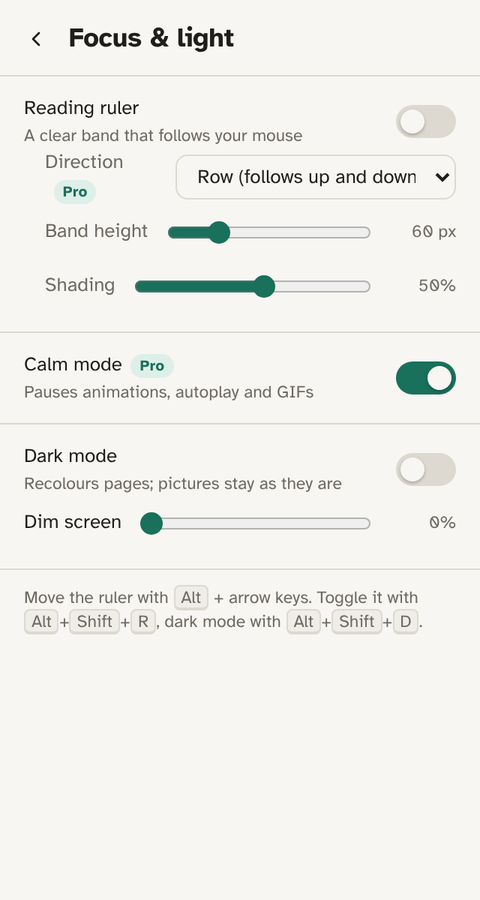
Emboldened is our extension, built for dyslexia, ADHD and light sensitivity, so this is the part to read sceptically. For light sensitivity it offers four things, three of them free:
- Dim — a slider that darkens the whole page without changing its colours.
- Tint — six soft colour overlays (lemon, sky blue, mint, peach, lavender and grey). Some people with visual stress find one colour in particular settles the text; the tint is for trying that.
- Dark mode — rather than inverting, it analyses each page’s colours and recolours text and backgrounds to dark, while leaving photos, diagrams and video exactly as they were. Nothing flips.
- Soft white (Pro) — replaces pure white with cream across the page without touching other colours, for people who find dark mode too stark but white too bright.
Keyboard shortcut Alt+Shift+D toggles dark mode, and a Light-sensitive preset sets these up in one tap. The free features are free for good; Pro is £85 a year with a 14-day trial on install. It doesn’t do scheduled sunset switching the way Screen Shader does.
4. Visor — a free dimmer with a reading line
Visor dims the page and adds a horizontal band of focus that follows your mouse — a reading ruler with the dimming built in. It’s free and has about 100,000 users. From its own listing: it requests no permissions, so you switch it on again on every new page, and it won’t run on Chrome’s internal pages. A good minimal choice if dimming plus a reading line is all you want.
5. Chrome’s own settings
Not an extension, but worth the two minutes. Chrome can follow your system dark mode for its own interface and offers a “force dark” flag that darkens pages crudely (it inverts, like Dark Reader, but with fewer controls). Reading mode in the side panel lets you set a colour theme for articles. These are free and already installed; try them before adding extensions.
Which to pick
- “I just need everything warmer”: Screen Shader, with the sunset schedule on.
- “White pages hurt, I want dark, images don’t matter much”: Dark Reader.
- “White pages hurt, but I look at photos, diagrams or video all day”: Emboldened’s dark mode.
- “Dark mode gives me halos / too much contrast”: Emboldened’s dim or soft white, or Dark Reader with its contrast turned down.
- “I’m not sure, and I also lose my place when reading”: Emboldened, because the ruler and the light controls are in the same place.
Don’t run two of these on the same page. A tint on top of a dark mode on top of a dimmer produces mud, and you’ll blame your eyes.
Questions
Is dark mode always better for light sensitivity?
No. Many people with photophobia find white-on-black causes halos and after-images, especially with astigmatism. A dimmed or cream page with dark text is often more comfortable. Try both for a day each. More in photophobia and screens.
Why do images look wrong in some dark modes?
Because they recolour the whole page, and on some sites that catches pictures, logos and diagrams. Dark Reader lets you tune this per site; Emboldened’s dark mode recolours only text and backgrounds, so images never change. See dark mode without inverting images.
Does a coloured overlay help with migraine or visual stress?
For some people, noticeably; for most, modestly; the research is mixed. An overlay is cheap to try. Emboldened’s six tints are for exactly that experiment; see visual stress and screen tint.
Can I schedule these to come on in the evening?
Screen Shader can, by sunset. Dark Reader follows your system dark mode, which most operating systems can schedule. Emboldened doesn’t schedule; it’s a keyboard shortcut or a tap.
Free to install. Every Pro feature is on for 14 days, no card. Nothing you read leaves your computer.