
A reading ruler Chrome extension that follows your mouse
A reading ruler keeps one line of text clear and shades everything else, so your eyes stop wandering to the next paragraph. Emboldened’s ruler is free, works on any website, and follows your mouse as you read. Pro adds a vertical version for tables and code.
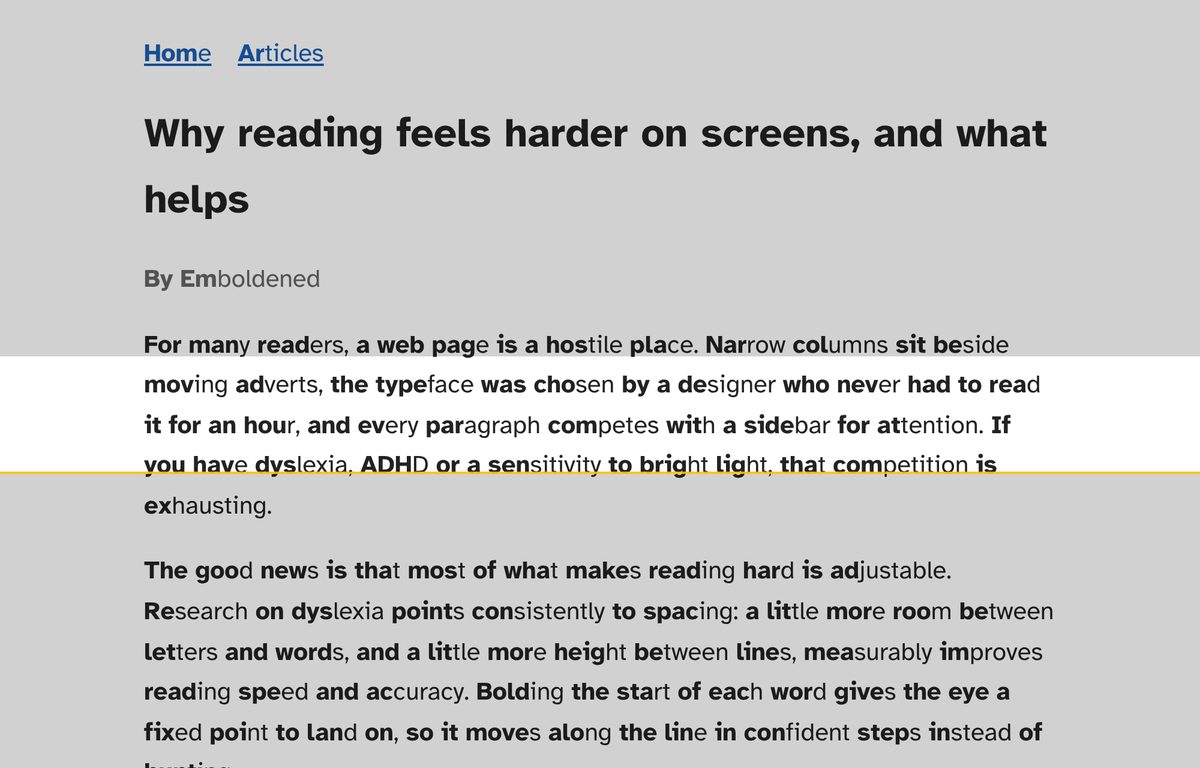
What a reading ruler does
On paper, a reading ruler is a strip of card with a window cut in it. You slide it down the page and only the line inside the window is visible. On screen, the idea is the same: a clear horizontal band sits over the line you’re reading, and the page above and below it is dimmed. As you move the mouse, the band moves with it.
The point is not to make the text bigger or clearer. It’s to remove everything that competes with it. If you’ve ever reached the end of a line and found yourself starting the same line again, or three lines down, the ruler fixes exactly that. It gives your eyes one place to be.
Reading rulers are a long-standing tool in dyslexia support and are one of the first things specialist teachers hand to a child who loses their place. The reasoning is simple: line-tracking is a visual task, and anything that reduces the visual load leaves more attention for the words. For readers with ADHD the benefit is slightly different but related: the shaded page is a quieter page, and a quieter page is easier to stay on. We go into the evidence, and its limits, in why reading rulers help.
How Emboldened’s ruler works
Switch it on and a clear band appears across the page at the height of your mouse pointer. Move the mouse down and the band follows. Everything outside the band is shaded, not hidden, so you can still see where you are on the page and scroll normally.
- Band height is a slider. Set it to one line for careful reading or three or four lines for skimming.
- Shading is a slider too, from a faint grey that just takes the edge off to a deep shade that leaves only the band readable.
- A keyboard shortcut, Alt+Shift+R, toggles it without opening the extension, which matters when you’re switching between a long article and a form.
- It stays out of the way. The ruler doesn’t capture clicks, so links, buttons and text selection work exactly as before.
The horizontal ruler is part of the free tier, for good. Emboldened Pro adds a column ruler: a vertical band for spreadsheets, data tables and code, where the thing you lose your place in is a column rather than a line.
How to turn it on
- Install Emboldened from the Chrome Web Store. It also installs in Microsoft Edge and other Chromium browsers such as Brave.
- Click the Emboldened icon in the toolbar, then Focus & light.
- Switch on Reading ruler. The band appears on the page straight away; there’s no reload.
- Adjust Band height and Shading until the band fits the line height of the page you’re on. Settings apply live, so you can watch the effect as you drag.
- Press Alt+Shift+R any time to toggle it.
If you’d rather set several things at once, the Focus preset on the home screen turns on the ruler, calm mode and a little line spacing together; the Dyslexia preset sets bolded word starts, spacing, a clearer font and a cream background instead. You can switch Emboldened off for a particular site, your email editor say, with one toggle, and it stays off there.
It works well with
A ruler on its own helps you keep your place. Combined with two other free settings it does more:
- Bold word starts. The first syllable of each word is bolded, so inside the band your eyes have fixed points to land on. This is the pairing in the screenshot above.
- Dim screen or dark mode. If bright pages are the problem rather than line-tracking, shading the page around the band may not be enough; dimming the whole page or recolouring it dark reduces glare everywhere. See dark mode that doesn’t invert images.
- Read aloud. Hearing the text while the band tracks it gives you two anchors instead of one. Read aloud with word highlighting is free for selected text.
Limits worth knowing
The ruler follows the mouse, which is right for most reading but not all of it. If you read with the keyboard, scrolling with the arrow keys, the band stays where the pointer was until you move the mouse again. It’s also a band, not a line: on pages with very tight line spacing you may want to add a little line spacing (a Pro setting) so a one-line band really does show one line.
Like every extension, it can’t run on Chrome’s own settings pages or the Chrome Web Store, because Chrome doesn’t allow any extension there. PDFs opened in Chrome’s built-in viewer are a separate case: the ruler works on web pages, not inside that viewer.
Other reading ruler extensions
If you only want a ruler and nothing else, there are single-purpose extensions that do it well. Reader Line is a popular one: a movable ruler with adjustable colour, height and opacity, and a line mode and a focus mode. Helperbird bundles three kinds of ruler among a much larger set of accessibility tools, with a free tier and a paid one.
Where Emboldened differs is that the ruler sits next to the other things a tired reader usually needs at the same time: bolded word starts, spacing, tint, dark mode and read-aloud, all applied live to the page, with nothing you read leaving your computer. If you’re choosing between full toolkits, we’ve written up how Emboldened compares with Helperbird honestly, including what Helperbird does better.
Questions
Is the reading ruler free?
Yes. The horizontal ruler, with its height and shading controls and the keyboard shortcut, is in the free tier and stays free. Only the vertical column ruler is a Pro feature.
Does it work on every website?
On any normal web page, including web apps and pages that keep loading as you scroll. The exceptions are Chrome’s own settings pages and the Chrome Web Store, where Chrome blocks all extensions.
Can I change the colour of the band?
The band is clear and the surround is shaded; you control how dark the shading is. If you want colour over the page, use the tint setting alongside the ruler: the band stays clear and the tint applies to the whole page.
Does it slow the page down?
No. The ruler is two shaded layers that move with the mouse; it doesn’t change the page’s text or layout, so there’s nothing to recalculate.
Will it get in the way of clicking?
No. The ruler never captures clicks, so links, buttons, forms and text selection all behave as normal underneath it.
Free to install. Every Pro feature is on for 14 days, no card. Nothing you read leaves your computer.