
Chromebook extensions for students with dyslexia
Chromebooks are the most common school device in the UK and US, and because everything on them runs in Chrome, a dyslexia tool is nearly always a Chrome extension. The catch is that school Chromebooks are managed: a student can only install what the administrator allows. This guide covers what’s already built in, what schools typically deploy, and the smaller tools worth asking for — with honest notes on which are free.
First, what’s already on the Chromebook
ChromeOS has more built in than most people realise, and it needs no permission from anyone:
- Select-to-speak (Settings → Accessibility) reads any selected text aloud with word highlighting. Press the Launcher key and click, or use the floating button.
- Reading mode in Chrome’s side panel pulls an article into a plain column and lets you change font, size, spacing and colour.
- Dictation for writing, and ChromeVox (a full screen reader) for students who need everything spoken.
- Zoom and high-contrast modes, and a dark theme for the system.
A surprising number of students manage with Select-to-speak plus reading mode and nothing else. Try those first.
What schools usually deploy
Read&Write for Google Chrome
Read&Write from Texthelp (now Everway) is the most widely licensed literacy toolbar in schools, on roughly 20 million devices. Text-to-speech with dual-colour highlighting, text and picture dictionaries, word prediction, dictation, highlighters that gather into a summary, and strong Google Docs and PDF support. It’s 30 days free on install, teachers can register for a free premium account, and schools license it per seat. If your school has it, use it — it’s built for exactly this and it integrates with the Google Workspace the student is already in. Parents buying privately are directed to contact sales.
Snap&Read
Snap&Read is the other common institutional choice: read aloud on web, PDF and Drive, text that can be simplified to a lower reading level without changing meaning, translation, OCR for text in images and scanned PDFs, colour overlays and reading guides, a picture-supported dictionary and an outlining tool. Free to try; pricing is on the publisher’s site and aimed at schools. Its text-levelling is unusual and valuable for a student who can decode but gets lost in vocabulary.
Lighter tools a student can ask for
If the school’s deployment is minimal, or a student is on a personal Chromebook, these are small, mostly free, and each does one thing well.
Helperbird
Helperbird bundles 16 fonts (OpenDyslexic and Lexend among them), a dyslexia ruler, overlays and tints, text-to-speech, Microsoft’s Immersive Reader, dictation and writing aids. The free tier covers the essentials; Pro is $30 a year and there’s an unlimited-users tier for institutions. Good when one extension has to cover a whole class’s mixed needs.
Emboldened
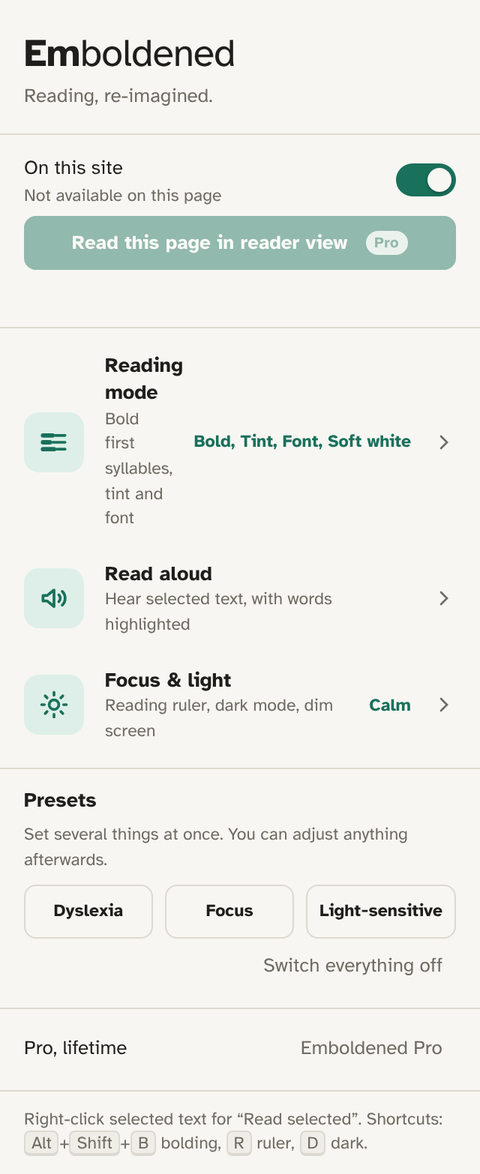
Emboldened is ours, so discount accordingly. It bolds the first syllable of every word using a syllable dictionary, adds a reading ruler that follows the mouse, bundles Atkinson Hyperlegible, Lexend and OpenDyslexic, offers tint, dim and a dark mode that leaves pictures alone, and reads selected text aloud with word highlighting — all free, with no account and nothing sent off the device, which matters on a school network. Three presets (Dyslexia, Focus, Light-sensitive) mean a teacher or parent can set it up in one tap. Pro (£85 a year, 14-day trial) adds reader view, read-aloud from any paragraph, offline definitions and spacing controls. It’s a reading tool only; it has no writing support, so pair it with the built-in dictation or Read&Write for that.
OpenDyslexic for Chrome
OpenDyslexic for Chrome swaps every page’s font for OpenDyslexic and does nothing else. Free, about 700,000 users. If a student has found the font helps them (the research is mixed, the preference is real), this is the lightest way to have it everywhere.
Read Aloud
Read Aloud reads any page, selection, PDF or Google Doc, with optional highlighting, using the Chromebook’s voices for free (paid cloud voices are optional). Open source, six million users. A good fallback if the school won’t license Read&Write and the student needs Docs read aloud.
BeeLine Reader
BeeLine Reader colours each line with a gradient so the eye follows the colour to the next line. Free on a list of favourite sites; teachers can apply for free student access. Unusual, and for some students the thing that stops line-skipping.
Getting an extension onto a managed Chromebook
- Check the Chrome Web Store on the device: if “Add to Chrome” is greyed out or shows “blocked by administrator”, the school’s Google Admin console controls it.
- Ask the SENCO or learning-support lead, not the IT desk first — they can make the educational case and are usually the ones who request allow-listing.
- Give them the extension’s store link and a sentence on what it does and what data it handles. Tools that collect nothing (Emboldened, OpenDyslexic, Read Aloud with local voices) are the easiest to approve; anything with accounts or cloud processing needs a data-protection check.
- Ask for it to be allowed rather than force-installed, so the student can switch it off on sites where it gets in the way.
For UK students heading to university, note that the Disabled Students’ Allowance process has its own list of recommended software; see DSA and free reading tools for university.
Questions
Can a student install extensions on a school Chromebook?
Only ones the administrator has allowed. Many schools allow a list of approved accessibility extensions; ask the SENCO to request additions.
Which free tools cover the most?
The built-in Select-to-speak and reading mode, plus Emboldened’s free tier (bolding, ruler, fonts, tint, dark mode, read selected text) or Helperbird’s free tier. Between them that’s most of what Read&Write does for reading, though not its writing tools.
Do these work in Google Classroom and Google Docs?
Read&Write and Read Aloud are built for Docs. Emboldened and the font/ruler tools work on Classroom pages and on documents when reading, but not inside the Docs editing canvas, which Google controls.
Is anything here safe for a school network?
Emboldened, OpenDyslexic and Read Aloud (with local voices) send nothing off the device. Read&Write, Snap&Read and Helperbird have accounts and cloud features, which is normal and fine but means a data-protection check before deployment.
Free to install. Every Pro feature is on for 14 days, no card. Nothing you read leaves your computer.