
The best Chrome extensions for dyslexia in 2026
There is no single “dyslexia extension”, because dyslexia isn’t one difficulty. Some people need a font that stops letters flipping; some need their place held on the line; some need to hear the text; some need less white glare. This list is organised by what each tool is for, so you can pick the one or two that match your reading rather than installing nine. Prices are as listed in November 2026.
A quick way to choose
| If your main difficulty is… | Start with |
|---|---|
| Losing your place, re-reading lines | A reading ruler (Emboldened, Visor) or bolded word starts (Emboldened, Jiffy Reader) |
| Letters crowding or swapping | Letter spacing and a clearer font (Emboldened, Helperbird, OpenDyslexic) |
| Decoding is slow and tiring | Read-aloud with word highlighting (Read Aloud, Emboldened, Read&Write) |
| Glare and visual stress | Tint, dim or a non-inverting dark mode (Emboldened, Dark Reader) |
| Cluttered pages | A reader mode (Reader Mode, Chrome’s built-in reading mode) |
| Writing as well as reading | Read&Write or Helperbird (prediction, dictation) |
1. OpenDyslexic for Chrome — the font, and only the font
OpenDyslexic for Chrome replaces every font on every page with OpenDyslexic, the heavy-bottomed typeface designed to stop letters rotating in the mind’s eye. It is free, has around 700,000 users, and does nothing else. That focus is its strength: if OpenDyslexic works for you, this is the lightest way to get it everywhere. The evidence that the font itself improves reading is mixed — we go through it in dyslexia-friendly fonts explained — but plenty of readers prefer it, and preference matters when you’re reading for hours.
2. Helperbird — the Swiss army knife
Helperbird is the broadest tool here: 16 fonts including OpenDyslexic and Lexend, a dyslexia ruler, overlays and tints, text-to-speech, Microsoft’s Immersive Reader, dictation and voice typing, and a long list of writing aids. It has about 500,000 users and is actively maintained. The free tier covers the essentials; Pro is $30 a year. The trade-off is breadth: there is a lot of interface to learn, and some readers find they use three features and ignore forty. If you want reading and writing support in one place, start here.
3. Emboldened — reading, applied live to any page
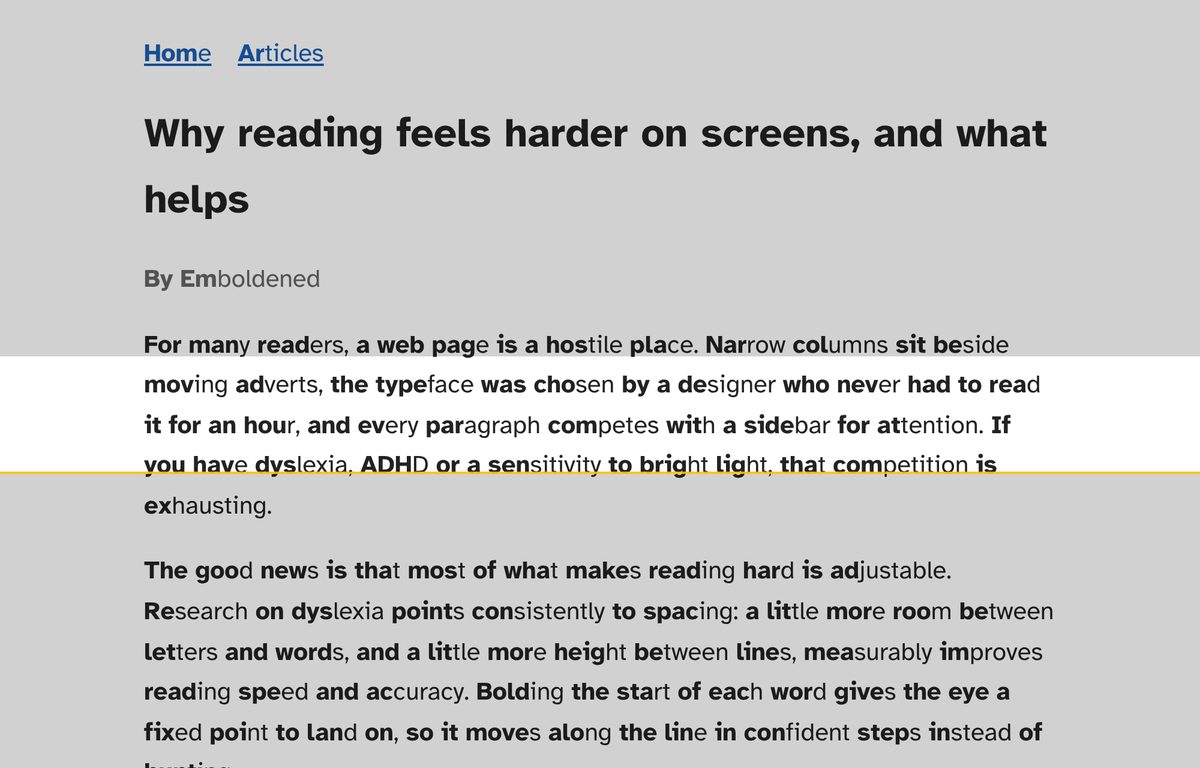
Emboldened (ours, so weigh this accordingly) bolds the first syllable of every word using a 139,000-word syllable dictionary, so “information” becomes information rather than a fixed slice of letters. Around that it adds a reading ruler that follows your mouse, three bundled fonts (Atkinson Hyperlegible, Lexend, OpenDyslexic), a soft tint, a dim slider, a dark mode that recolours the page but leaves pictures alone, and read-aloud of selected text with sentence and word highlighting. All of that is free, for good, with no account and nothing sent off your computer. Pro (£85 a year, 14-day trial on install) adds reader view, read-aloud from any paragraph with an on-page player, offline definitions on double-click, letter/word/line/paragraph spacing, syllable dots and calm mode. It’s for Chrome and Edge only; if you need Firefox or writing tools, look elsewhere on this list.
4. Read Aloud — text-to-speech for everything
Read Aloud is the workhorse text-to-speech extension, with around six million users. One click reads a page or a selection; it handles PDFs, Google Docs, Kindle and Play Books; word highlighting can be switched on in its options. It uses your browser’s voices for free, with paid cloud voices (Google, Amazon, Microsoft, OpenAI) as an option. It’s open source. If you mainly need to hear text, and you want it to work in Google Docs, this is the one. Its highlighting is less tightly tied to the text than Emboldened’s, and it has no visual reading aids.
5. Read&Write for Google Chrome — the school standard
Read&Write from Texthelp (now trading as Everway) is what most UK and US schools deploy: text-to-speech with dual-colour highlighting, text and picture dictionaries, word prediction, dictation, highlighters that collect into a summary, and deep Google Docs and PDF support. It’s installed on roughly 20 million devices. All features are free for 30 days, teachers can register for a free premium account, and schools buy per seat; parents are told to contact sales. It is the right answer for a student whose school already has it. For an adult buying for themselves, it’s priced and designed for institutions, and its store reviews reflect frustration with that.
6. Jiffy Reader — bionic-style bolding, free and open source
Jiffy Reader bolds a fraction of each word and lets you tune almost everything: how much is bolded, whether every word or every second or third, bold versus underline versus colour, how faint the rest of the word is. It is GPL-licensed and runs on Chrome, Firefox and Safari. The original project was archived in 2025 and is continued by new maintainers. It does one thing, does it very configurably, and costs nothing. See Emboldened vs Jiffy Reader for the detailed comparison.
7. BeeLine Reader — a colour gradient instead of bold
BeeLine Reader takes a different approach to line tracking: each line of text fades through a colour gradient, so your eye follows the colour from the end of one line to the start of the next. It’s free on a favourites list of sites; Pro is $1.99 a month with annual discounts, and there’s a separate PDF extension. Some dyslexic readers find the gradient is the thing that finally stops them skipping lines; others find colour in the text distracting. Worth a try precisely because it’s unlike anything else here.
8. Visor — a free screen dimmer and reading line
Visor dims the page and draws a horizontal band of focus that follows the mouse. It’s free, simple and has around 100,000 users. Two caveats from its own listing: it asks for no permissions, so you reactivate it on every page load, and it doesn’t work on Chrome’s own pages. If you want only a ruler and nothing else, it’s a good minimal pick; Emboldened’s ruler is comparable but stays on across pages and sits alongside its other tools.
9. Reader Mode — a clean article view with dyslexia options
Reader Mode rebuilds an article as a plain page with dyslexia-friendly fonts, a reading ruler, text-to-speech, and (mostly premium) highlighting, notes, saving and citation tools. It’s the right tool for long articles you want to keep and annotate. It can’t help on pages it can’t parse — web apps, forums, tables — and its store rating is low at the time of writing, with many reviews about the paid tier, so read them first. Chrome’s own built-in reading mode (in the side panel) is a free alternative worth trying before you install anything.
Honourable mention: Dark Reader
Dark Reader isn’t a dyslexia tool, but with seven million users it’s the dark mode most people reach for, and white glare is a real part of reading difficulty for many dyslexic readers. Depending on the mode and the site, it can recolour images, logos and diagrams as well as text, and you may find yourself tuning its per-site settings. If that bothers you, Emboldened’s dark mode is built to leave pictures as they are; see Emboldened vs Dark Reader.
How to try them without wasting a week
- Install one tool at a time. Two bolding engines or two dark modes on the same page produce a mess and you won’t know which is helping.
- Test on the pages you actually struggle with — your email, your work systems, the sites you read daily — not a demo article.
- Give each setting a full day. The first ten minutes with any visual change feel strange.
- Keep what you’d miss. Most people end up with a ruler or bolding, one font, and read-aloud, and nothing else.
Questions
Which extension is best for a child with dyslexia?
If their school uses Read&Write, use that at home too for consistency. Otherwise Emboldened or Helperbird: both are free to start, and a parent can set presets so the child doesn’t have to fiddle. See Emboldened for parents.
Do any of these work in Google Docs?
Read Aloud and Read&Write are built for Google Docs. Emboldened and the bolding/ruler tools treat Docs like any other page, which works for reading but not inside the editing canvas.
Are dyslexia fonts proven to help?
The research is mixed: studies generally find no measurable speed or accuracy gain from OpenDyslexic specifically, while spacing and size do show effects. But many readers strongly prefer a particular font, and comfort over hours of reading is worth a lot. Details in dyslexia-friendly fonts explained.
Can I use these on Edge?
Yes. Edge installs Chrome extensions once you allow extensions from other stores. See Edge extensions for dyslexia.
Free to install. Every Pro feature is on for 14 days, no card. Nothing you read leaves your computer.