
A read aloud extension that highlights each word as it’s spoken
Emboldened reads web pages aloud with the voices already on your computer and highlights the sentence and the word being spoken, so you can follow with your eyes while you listen. Reading selected text is free. Pro adds reading from any paragraph you click, an on-page player, and a reader view that reads whole articles.
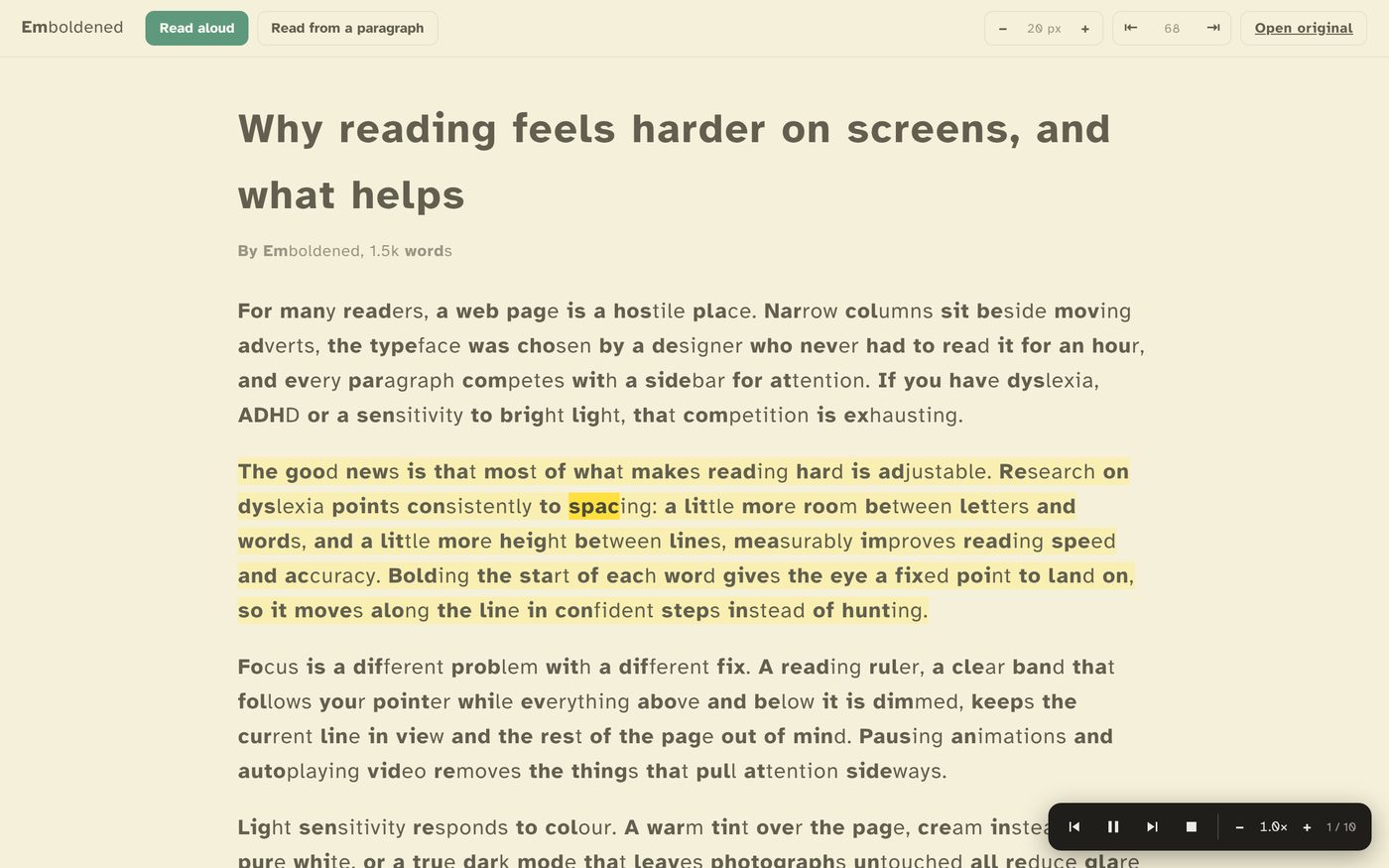
Why the highlighting matters
Text-to-speech on its own turns reading into listening. That’s useful, but for a lot of people the goal isn’t to stop reading, it’s to read with less effort. Highlighting is what makes the difference. When the word being spoken lights up as you hear it, you get two signals at once, the sound and the shape, and each one props up the other. You hear the word you can’t quite decode, and you see the word you didn’t quite catch.
There’s a reasonable evidence base for this. A meta-analysis of 22 studies (Wood, Moxley, Tighe and Wagner, Journal of Learning Disabilities, 2018) found that text-to-speech and read-aloud tools had a positive effect on reading comprehension for students with reading disabilities, with an average effect size of about 0.35, a modest but real gain. It isn’t a cure, and it helps some readers a great deal more than others, but it is one of the better-supported accommodations.
How it works in Emboldened
Free: read selected text
Select any text on a page, right-click, and choose Read selected. Emboldened reads it with your chosen voice, tinting the current sentence and highlighting the current word as it goes. This works on any web page and needs no account.
Pro: read from anywhere, with a player
- Read from any paragraph. Hold Alt and click a paragraph, or press Pick and click, and Emboldened reads from there to the end of the page. No selecting.
- An on-page player appears while it reads: pause and resume, skip back or forward a sentence, and change speed from 0.5× to 3×, all without opening the extension.
- Reader view turns an article into a clean page with your settings applied, and the Read aloud button reads the whole thing from the top.
- Definitions. Double-click a word to see its meaning, with a speaker button to hear it. The 147,000-word dictionary is built in and works offline.
Voices: local, not cloud
Emboldened uses the voices already installed on your computer: the Windows, macOS or ChromeOS voices, and the Google voices built into Chrome. It prefers a UK English voice when one is installed, so on most Windows and Chrome setups you’ll hear one straight away. Because nothing is sent to a cloud service, there’s no account, no word limit, and nothing you read leaves your computer.
The honest trade-off is that local voices are a step behind the best cloud voices. Services like Speechify and NaturalReader sell very natural-sounding AI voices, and if a human-sounding voice is what matters most to you, that is what you’re paying for. We’ve compared them properly in Emboldened vs Speechify and Emboldened vs NaturalReader. The modern voices in Windows 11 and Chrome are considerably better than the robotic ones people remember, and for reading an article or a document they’re more than clear enough.
How to set it up
- Install Emboldened from the Chrome Web Store.
- Click the Emboldened icon, then Read aloud, and choose a voice and a speed. The list shows every voice installed on your computer.
- On any page, select some text, right-click, and choose Read selected.
- With Pro (every Pro feature is on for 14 days when you install), hold Alt and click a paragraph to read from there, or open the page in reader view and press Read aloud.
If you want a more natural voice on Windows, add one in Settings → Time & language → Speech; it appears in Emboldened’s list the next time you open it. On a Mac, voices are under System Settings → Accessibility → Spoken Content.
Limits worth knowing
Read aloud works on web pages. It doesn’t read PDFs opened in Chrome’s own viewer, Google Docs’ editing canvas, or anything inside Chrome’s settings pages, where no extension can run. Word highlighting depends on the voice reporting where it is: nearly all local voices do, and Emboldened keeps the sentence tint running even on the few that don’t.
Other read-aloud extensions
Read Aloud: A Text to Speech Voice Reader is the long-standing open-source option, with millions of users. It reads pages with local voices and can be switched to cloud voices (Google, Amazon, Microsoft, OpenAI) with your own key or an in-app purchase, and it has an optional highlighting mode. If you want a dedicated reader with cloud voices, it’s a good choice. Microsoft Edge also has read aloud built in, with word highlighting, on pages it recognises as articles.
Emboldened’s reason to exist is the combination: the same tool that reads to you also bolds word starts, adds spacing, dims the page and keeps a ruler under your eyes, and all of it runs on your computer.
Questions
Is read aloud free?
Reading selected text aloud, with sentence and word highlighting, is free for good. Reading from any paragraph, the on-page player and reader view are Pro, with a 14-day free trial of every Pro feature when you install.
Which voices does it use?
The ones on your computer: Windows, macOS and ChromeOS voices, plus the Google voices in Chrome. It prefers a UK English voice if one is installed. No cloud voices, no account.
Does it send the text anywhere?
No. Speech is generated on your computer. The only optional network call in the whole extension is fetching a word’s pronunciation when you look up a definition.
Can I change the speed while it’s reading?
Yes, with Pro: the on-page player has speed controls from 0.5× to 3×, plus pause and skip. In the free tier you set the speed on the Read aloud screen before you start.
Does it work in Edge and Brave?
Yes. Both install Chrome extensions, and both have their own local voices that Emboldened can use.
Free to install. Every Pro feature is on for 14 days, no card. Nothing you read leaves your computer.